Web app hotkeys

Trade with the keyboard.

The Web App gives you almost no keyboard shortcuts. FC AutoBuyer adds the ones that matter: search, buy, page and move cards, all without the mouse.

Every key. And what it does.

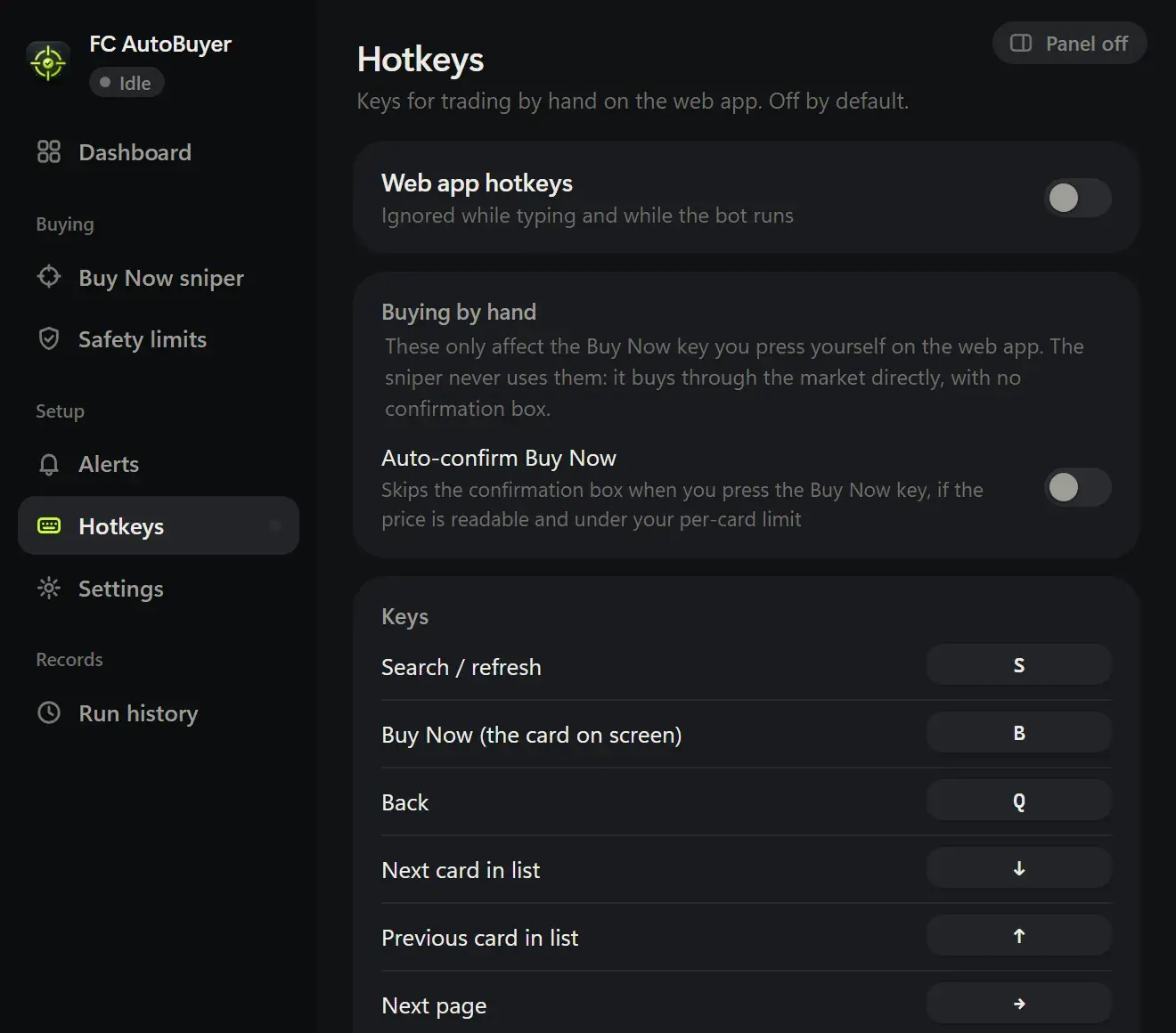
Defaults you can change on the Hotkeys page. They are off until you switch them on.

KeyDoesWhy it helps
SSearchRuns the search again with the filter already on screen, without reaching for the mouse.
BBuy NowBuys the card you have open. Turn on auto-confirm and it skips the confirmation box as well.
QBackSteps back a screen, the same as the arrow at the top left.
↑ / ↓Previous / next cardMoves the selection through the results list.
← / →Previous / next pageTurns the pages of a result list.
TSend to transfer listMoves the selected card to your transfer list.
CSend to clubMoves the selected card to your club.
Shift + XStart or stop the botStarts and stops FC AutoBuyer from the market screen.
Alt + Shift + SStart or stop from anywhereA Chrome-level shortcut, so it works even when the web app is not the tab in front.

Your keys

Rebind anything.

Click a key, press the one you want, and it is saved. Nothing is fixed.

  • Every action can be rebound or cleared
  • Ignored while you are typing in a search box
  • Ignored while the bot is running, so nothing clashes
  • One Chrome shortcut starts and stops the bot from any tab
Set it up in a minute →
FC AutoBuyer hotkeys settings with rebindable keys for search, Buy Now, paging and sending cards to the club

Why hand trading still matters

Plenty of trading is still done by hand: checking a price, clearing a transfer list, grabbing a card you spotted while scrolling. The Web App makes all of it slower than it needs to be, because every action is a click somewhere else on screen. Keys fix that.

The one that earns its keep is S. Refreshing a search by hand means moving to the Search button and clicking, over and over. On the keyboard it is one finger, and you can keep your eyes on the prices instead of the cursor.

Hotkeys and the bot are separate

These keys are for you, not for the sniper. FC AutoBuyer buys through the market directly, so it never presses a Buy Now button or waits for a confirmation box, and it ignores your hotkeys entirely while it runs. If you want the automatic side, that is auto buying and auto listing.

Before you start pressing keys

Buying quickly by hand is still buying: check what a card is actually worth with our price checking guide, and work out your resale price after EA's cut with the EA tax calculator. If you are new to the extension, the install guide takes about a minute.

More of what it does

Every part of FC AutoBuyer, explained on its own page.

Auto buy players

Set a filter and a price; it buys matching cards the moment they list.

Auto buy players →

Auto list players

Every card it buys goes straight back up, and never below what it paid.

Auto list players →

Safety limits

Hard spending limits, pacing and an auto-stop on trouble.

Safety limits →

Run history

Every run recorded: speed, buys, misses and why it stopped.

Run history →

Common questions

Barely. The Web App is built for the mouse, and outside of browser keys like Escape there is almost nothing to press. FC AutoBuyer adds the keys above on top of it, so searching, paging and buying can be done from the keyboard.

Yes. Every key on the Hotkeys page can be rebound: click the key, press the new one, and it saves. Backspace clears a key you do not want.

No, and that is deliberate. Hotkeys are ignored during a run so a stray key press cannot interfere with what the bot is doing, apart from the start and stop shortcut.

The Buy Now key asks for confirmation unless you turn auto-confirm on, and even then it only goes through when the price is readable and under your per-card limit. Hotkeys are off until you switch them on.

No. They are ignored whenever the cursor is in a text box or a search field, so typing a player's name never fires a shortcut.