This guide shows you how to install FC AutoBuyer, the Chrome extension autobuyer for the EA SPORTS FC Ultimate Team Web App, and how to set up your first run. It takes a few minutes, and you don't need any technical knowledge. If you haven't bought it yet, you can get FC AutoBuyer first; the download link arrives in your purchase email.
FC AutoBuyer is on its way to the Chrome Web Store. Until it lands there, you add it yourself through Chrome's extensions page using Developer mode, which is a standard Chrome option for loading an extension from a folder. A standalone FC AutoBuyer app is coming soon; for now, the extension is the way to run it.
Before you start: autobuyer Chrome extension setup checklist
- Google Chrome on a desktop or laptop. FC AutoBuyer runs in desktop Chrome only, not on phones or tablets.
- Your licence key and the download, both from #download in our Discord.
- An EA account that can use the transfer market in the Ultimate Team Web App. If you can't sign in or the market is locked, EA Help is the place to check.
- A rough idea of what you want to buy and for how much. Learn to price check players before you set a Max Buy Now.
Install the Chrome extension
Download FC AutoBuyer
Download FC AutoBuyer from #download in our Discord. Extract the zip and keep the folder somewhere permanent: Chrome loads the extension from that folder, so don't delete or move it later.
Open chrome://extensions
Type chrome://extensions into Chrome's address bar and press Enter. Google's help page on managing Chrome extensions covers this screen in more detail.
Switch on Developer mode
Turn on the Developer mode toggle in the top-right corner of the extensions page. New buttons appear along the top.
Click Load unpacked
Choose the FC AutoBuyer folder, the one that contains the manifest.json file. The FC AutoBuyer card appears in your list of extensions.
Pin the extension
Click the puzzle-piece icon in Chrome's toolbar and pin FC AutoBuyer so its icon is always visible. Clicking that icon opens the Dashboard.
Open or refresh the Web App
Open the EA SPORTS FC Ultimate Team Web App and sign in. If it was already open, refresh the tab so the extension can load. The FC AutoBuyer panel then appears on the Web App.
Activate your licence key
Click the FC AutoBuyer icon, paste the key we sent you into the Licence key box at the top and press Activate. The box then shows how long your key has left. No key, no start. Need one? Ask in our Discord.
Curious what Developer mode and unpacked extensions are? Google's Chrome extension documentation explains how extensions load.
Set up your first run
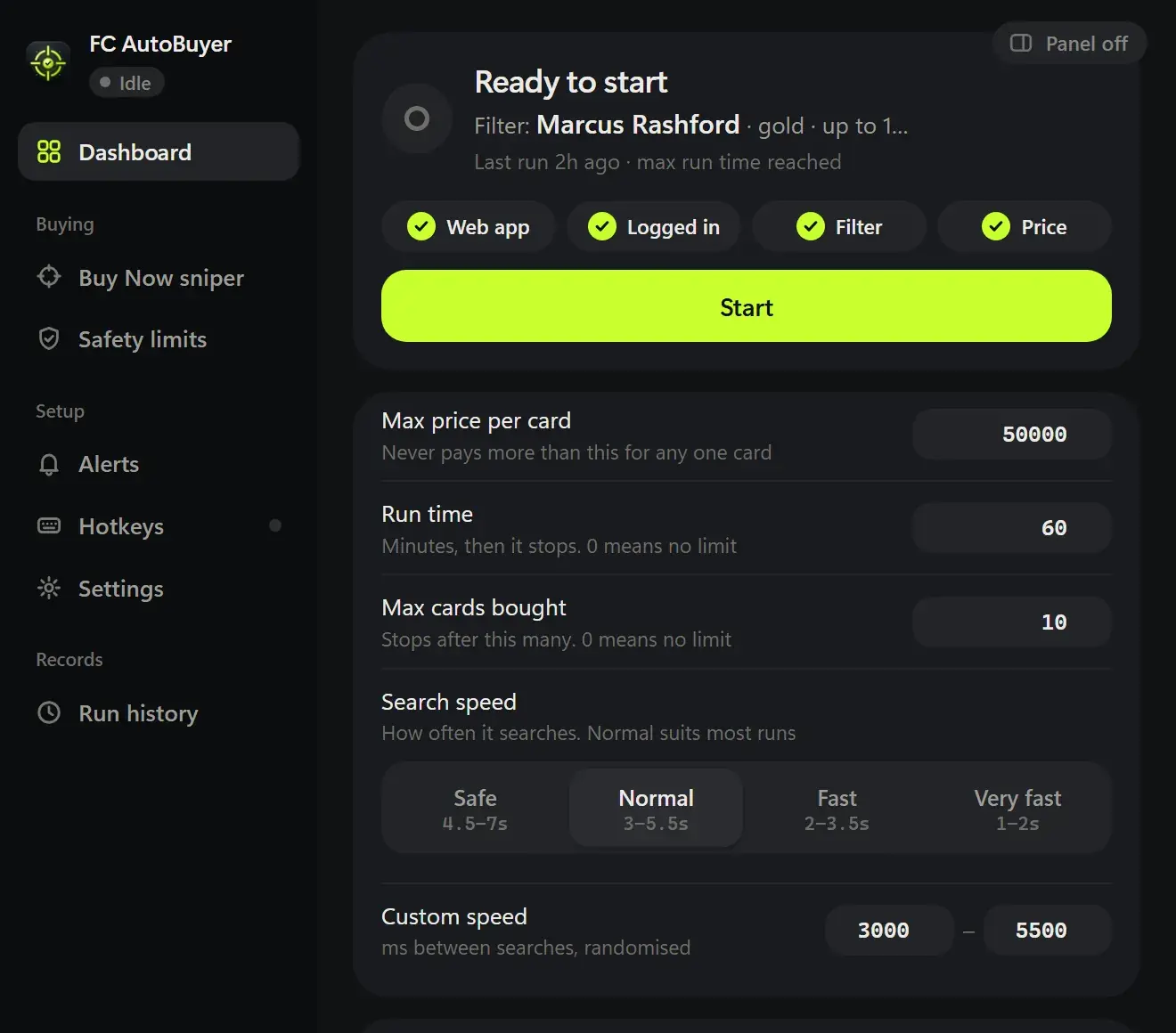
The Dashboard has everything you need to start, including a readiness checklist that shows what's still missing. Work through these steps:
Set a transfer market filter with a Max Buy Now
In the Web App, go to Transfers, then Search the Transfer Market. Choose quality, rarity, position, league, nation or club, and enter a Max Buy Now. As an example, if a card usually sells for 12,000 coins, you might set 10,500. For ideas, see autobuyer filter settings.
Choose what to buy
On the Dashboard, pick a buy mode: anything at or under your max price, or the cheapest card on each results page up to your per-card limit. You can save several filters and turn on rotation to switch between them every few searches.
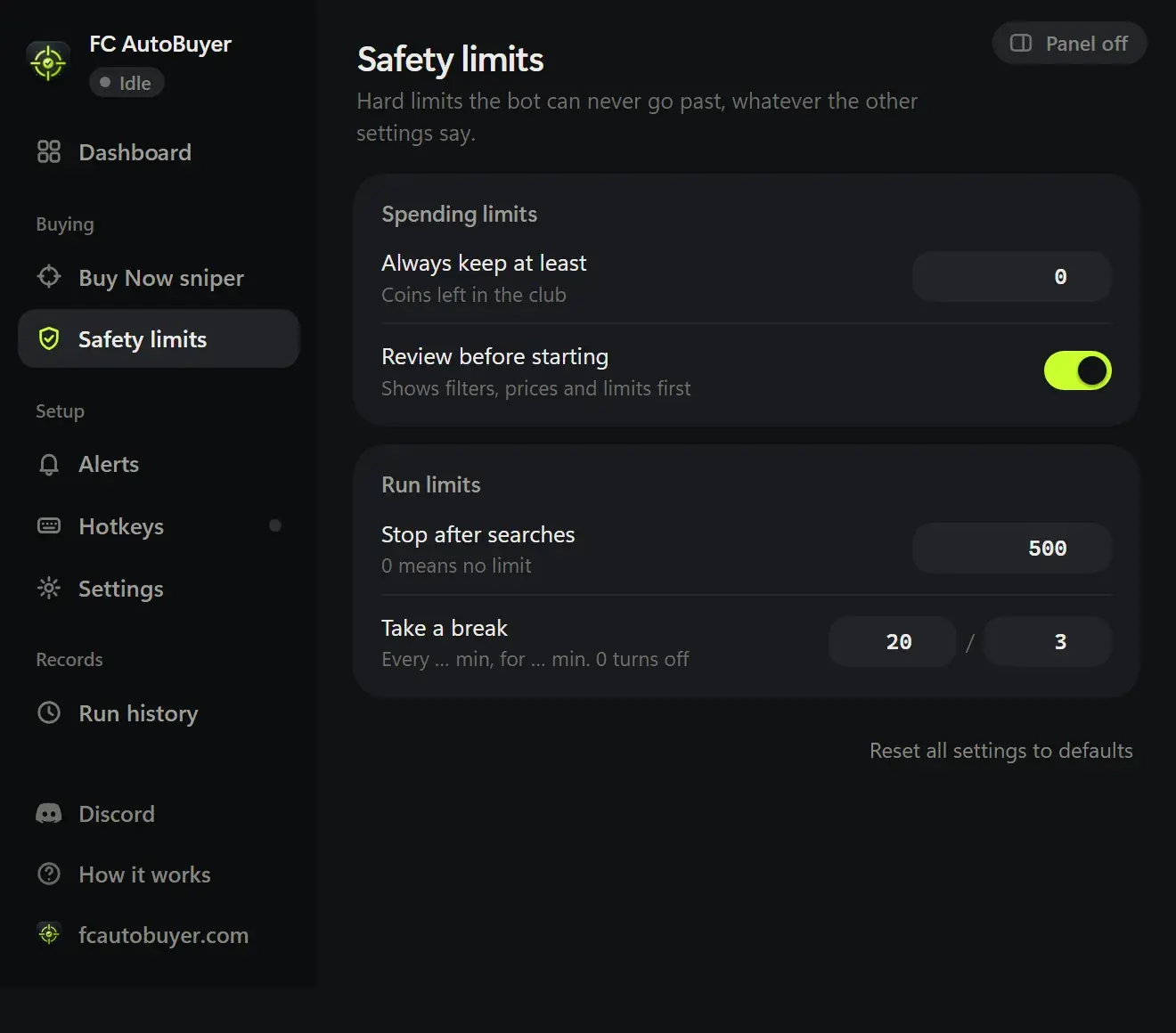
Check Safety & speed
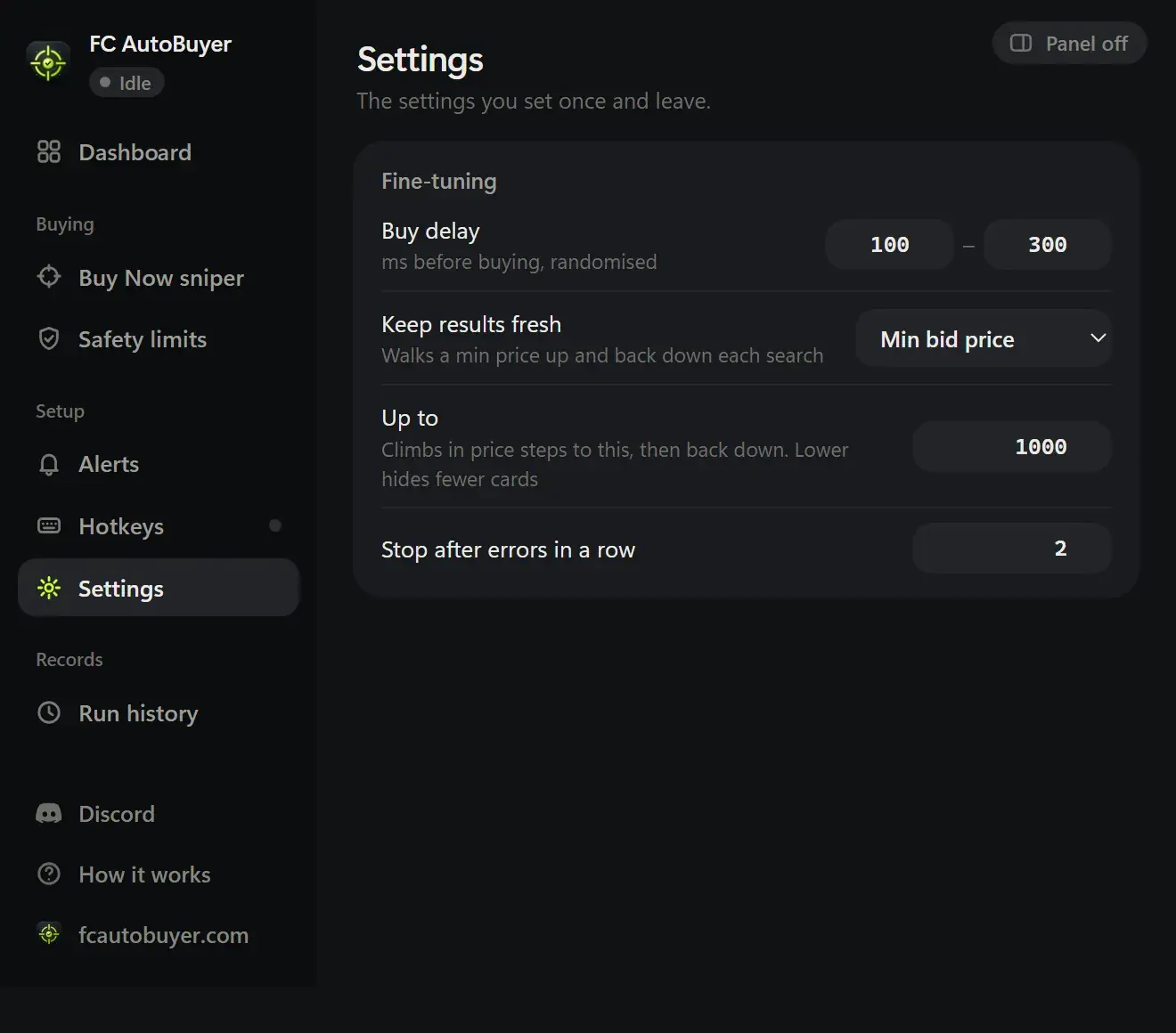
Set your per-card limit, run budget and speed preset, plus a coins-to-keep limit and breaks if you want them. Your per-card limit must cover your filter's Max Buy Now: FC AutoBuyer refuses to start if the filter allows higher prices. If you choose searches faster than 2.5 seconds, it warns you and offers to slow down or cap the run at 15 minutes.
Press Start, review, then Start now
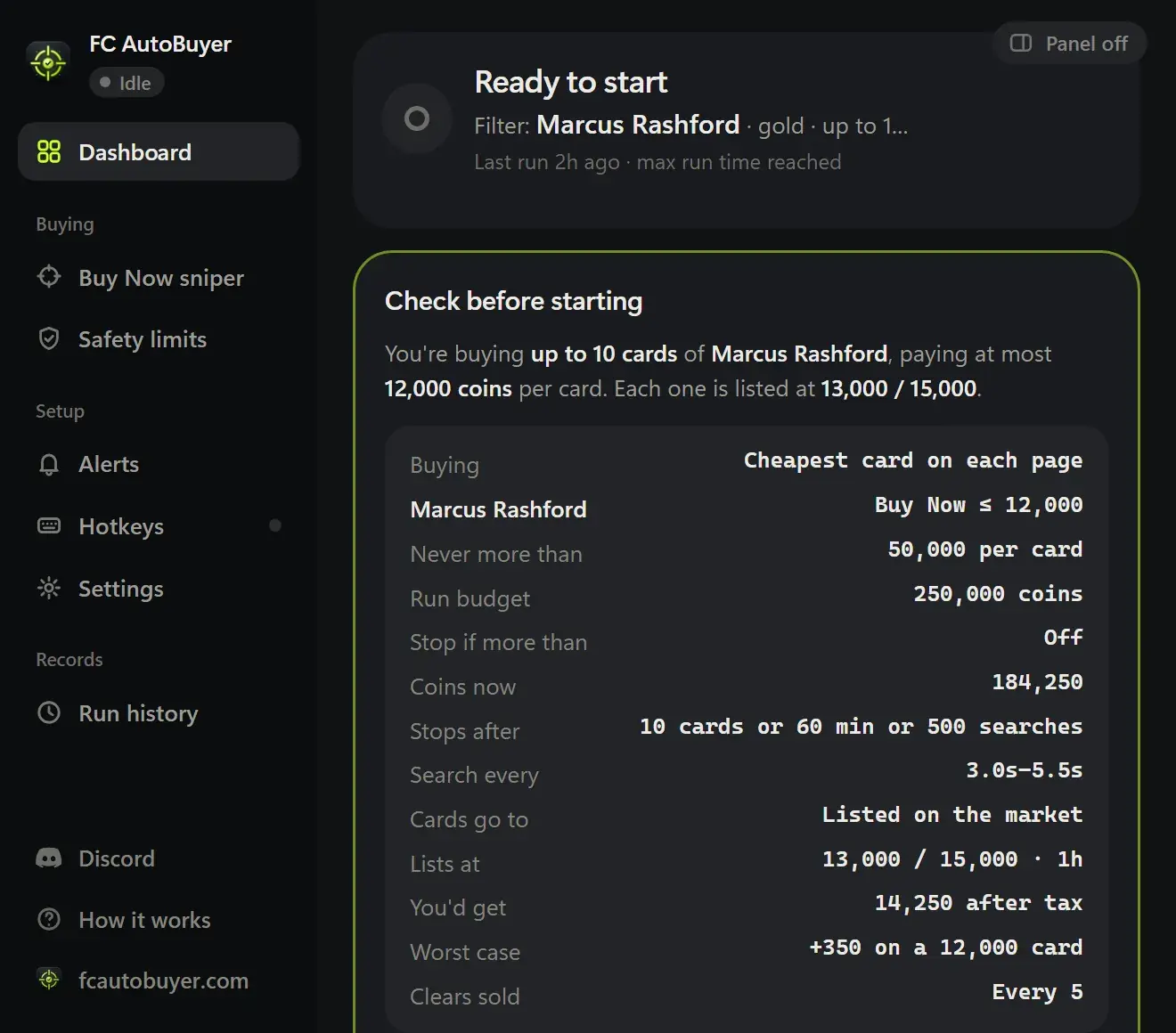
Press Start on the Dashboard or on the panel in the Web App. A review screen shows your filter, prices and limits. If it all looks right, press Start now. Prices and limits lock while the bot is running.
Watch the first run
Follow the live log and activity on the Dashboard. The toolbar icon shows a pulsing dot: green while running, amber on a break. The bot stops by itself on a captcha, soft ban, expired session, not enough coins or any limit you set.
Once you're comfortable, you can add sounds, desktop notifications or a Discord webhook under Alerts, hide the panel with headless mode, or switch on hotkeys, including Alt+Shift+S to start and stop from anywhere in Chrome. Hotkeys are off by default. New to the market itself? Our transfer market trading guide covers the basics.
After EA updates the Web App
EA changes the Web App from time to time. When that happens, or if the bot starts behaving oddly, do this:
Reload the extension
Open chrome://extensions and press the reload icon on the FC AutoBuyer card. If we've sent you a newer version, replace the files in your FC AutoBuyer folder first.
Refresh the Web App tab
Refresh the Web App so the reloaded extension connects to the page.
Run the Compatibility check
Open the Compatibility page from the extension. It checks every Web App function the bot needs and shows anything that isn't working.
Troubleshooting
There's no Load unpacked button
Developer mode is off. Switch it on in the top-right corner of chrome://extensions.
Chrome says the manifest file is missing
You picked the wrong folder. Choose the folder that directly contains manifest.json, not a folder above it, and make sure the download is extracted.
The panel doesn't show on the Web App
Refresh the Web App tab after installing or reloading the extension, and check that you're signed in and on the Web App in desktop Chrome.
The bot won't start
Look at the readiness checklist on the Dashboard. The most common cause is a filter whose Max Buy Now is higher than your per-card limit; lower one or raise the other.
The bot stopped on its own
That's by design. The live log and run history show the reason: a captcha, a soft ban, an expired session, not enough coins, too many errors in a row or a limit you set. If it was a captcha or soft ban, stop for a while before running again, and take steps to protect your EA FC account.
Still stuck?
Use Copy report in run history and send it to [email protected] or ask on Discord. You can also contact us, or check the FAQ. For what each setting does, see the autobuyer features, and for how the whole thing fits together, read how an autobuyer works.