Key takeaways
- Settings are about control first and speed second. Good limits stop a bad filter from spending your coins.
- Set Max Buy Now from a proper price check, leaving room for the 5% EA tax if you plan to resell.
- Keep the per-card limit, run budget and coins-to-keep limit switched on, and start with a low max purchases count.
- Leave search pacing at the 3 to 5.5 second default (or slower) and keep breaks on.
- No combination of settings makes an autobuyer risk-free. These are starting points, not guarantees.
Ask ten traders for the best autobuyer filter settings and you will get ten answers, most of them about going faster. In practice, the settings that matter most are the dull ones: what you search for, the most you will pay, how much you can spend in a run and how often you search.
This guide works through each group of settings in an EA FC autobuyer, using the real options and defaults in FC AutoBuyer as the reference. The same thinking applies if you learnt to trade back in FIFA Ultimate Team, before the game was renamed EA SPORTS FC in 2023: filter tightly, price carefully and pace yourself.
Treat every number here as a sensible place to begin. If you haven't set the extension up yet, our install guide covers that first. The FUT market moves constantly, so the right values for you depend on the cards, your coin balance and how much account risk you are willing to take.
What good settings actually do
An autobuyer repeats a simple loop: search the transfer market, check the results against your rules and buy anything that qualifies. If you want the full picture, read our explainer on how an autobuyer works. Your settings decide three things inside that loop:
- What counts as a buy. The search filter, buy mode, Max Buy Now and rating rules.
- When to stop spending. The per-card limit, run budget, coins-to-keep limit and max purchases.
- How the session behaves. Search delay, breaks, run length and error limits.
Get the first group right and you buy useful cards at good prices. Get the second right and a mistake costs you little. Get the third right and you lower (without removing) the chance of a transfer market soft ban.
Build a tight search filter
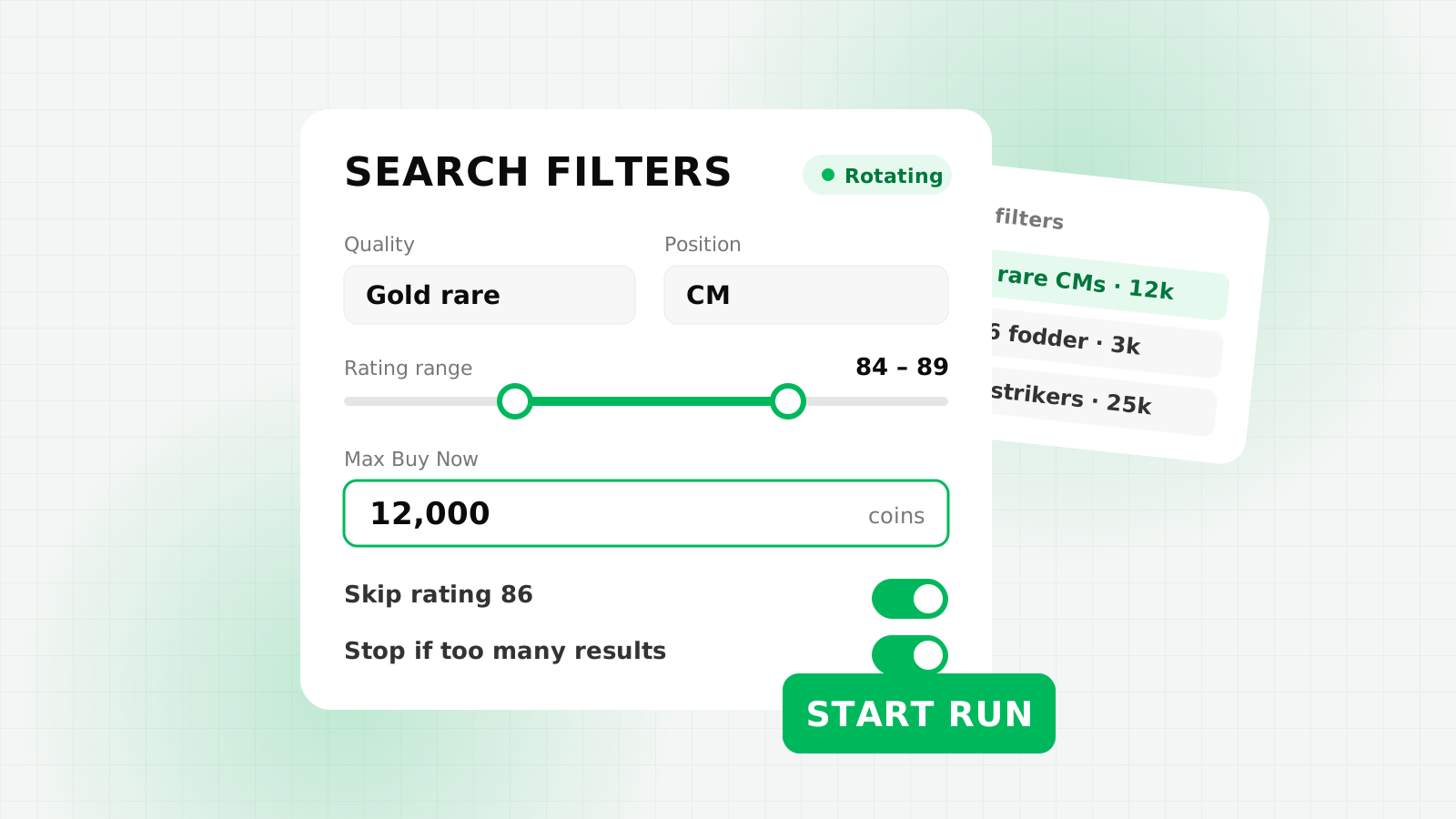
FC AutoBuyer uses the search filter you set up in the Ultimate Team Web App under Transfers, Search the Transfer Market. That means you get the Web App's own options: player name, quality, rarity, position, chemistry style, nation, league, club and price boxes.
A tight filter returns a small number of relevant listings. That is good for two reasons: the cards that appear are the ones you actually want, and you waste fewer searches on results you would never buy.
- Specific player filters are the most predictable. You know the card, you can check its price history and you can set an exact Max Buy Now.
- Attribute filters (for example, a quality, rarity and league combination) cover many cards at once, which suits fodder, but prices across the results vary more.
- Very broad filters with a high Max Buy Now are where mistakes happen. Avoid them until your limits are set.
Whatever filter you use, the price comes from research, not guesswork. Our guide on how to price check players walks through setting a Max Buy Now from real market data.
Autobuyer settings table: suggested starting points
The table shows each setting, its default in FC AutoBuyer and a suggested starting point. Suggestions are just that: adjust them to your cards, balance and comfort with risk.
| Setting | Default | Suggested starting point |
|---|---|---|
| Buy mode | Anything at or under max price | Keep the default for a single, well-priced target. Try "cheapest on each page" for broad filters. |
| Max Buy Now | Taken from your filter | Below the card's recent lowest Buy Now. If reselling, low enough to profit after the 5% tax. |
| Per-card limit | 50,000 coins | Just above the highest Max Buy Now you plan to use, never far above it. |
| Run budget | 250,000 coins | A share of your balance you would be comfortable spending in one run. |
| Coins to keep | Off (0) | The coins you want to keep for SBCs, upgrades or other trades. |
| Rating range | Off | Match your target, for example only the ratings an SBC needs. |
| Skip these ratings | Empty | Ratings you already hold plenty of. |
| Stop if more than X results | 10 | Keep it on. A flood of cards under your price often means your price is too high. |
| Max purchases | 10 per run | Start lower while you test a new filter, then raise it. |
| Search delay | 3 to 5.5 seconds, randomised | Keep the default or slower. Under 2.5 seconds triggers a warning. |
| Breaks | 3 minutes every 20 minutes | Keep them on. |
| Max searches / max run minutes | 500 searches / 60 minutes | Keep sessions short; lower both if you have had a soft ban before. |
| Max errors in a row | 5 | Leave as is so the bot stops when something is wrong. |
| Filter rotation | Off (every 10 searches when on) | Turn on with a few saved filters you have priced properly. |
| Where bought cards go | Unassigned | Unassigned while testing; transfer list or club once you trust the filter. |
Buy mode and Max Buy Now
FC AutoBuyer is a Buy Now sniper with two buy modes:
- At or under your max price. Buys any listing at or below your Max Buy Now. Simple and predictable when you know exactly what a card is worth.
- Cheapest on each results page. Picks the cheapest card on each page, up to your per-card limit. Useful for broader filters where you want the best-value listing rather than everything under a line.
By default the Max Buy Now comes from the filter you set in the Web App, but you can override it in the Buy Now sniper settings. Use the override when you want the same filter at a different price, such as one you have worked back from a target sale with our EA tax calculator.
If you are buying to resell, remember the 5% EA tax on sales. Say a card reliably sells for 10,000 coins: you receive 9,500 after tax, so buying at 9,500 is break-even and you need to pay less than that to make anything. Our EA tax explained guide covers the maths.
Not sure whether Buy Now sniping is the right approach at all? Our comparison of sniping vs bidding sets out the trade-offs.
Spending limits that protect your coins
These are the settings most worth getting right, because they are checked right before every single buy:
- Per-card limit. The most the bot will ever pay for one card. The bot refuses to start if your filter allows prices above it, which catches a mistyped Max Buy Now before it costs you.
- Run budget. The total the bot can spend in one run. Once it is reached, the run stops.
- Coins to keep. The balance the bot will never let you drop below.
- Stop if more than X results. If one search shows more cards at or under your price than this number, the bot stops. That usually points to a price set above the market, or a market that has just dropped, and either way you want to look before buying more.
Before a run starts, a review screen shows your filters, prices and limits and needs a second click. Prices and limits then lock while the bot runs, so nothing changes mid-session by accident.
Pacing, breaks and run limits
It is tempting to crank the search speed up. Resist it. Fast, regular searching over long sessions is closely associated with soft bans and captchas, and a faster bot that gets stopped is not faster in the end.
The default search delay is randomised between 3 and 5.5 seconds, so no two gaps are identical. If you choose a speed under 2.5 seconds, FC AutoBuyer shows a warning with options to slow down or cap runs at 15 minutes.
Breaks default to 3 minutes every 20 minutes, and the toolbar icon turns amber while one is running. Max searches, max run minutes and max errors in a row end a session cleanly instead of letting it drift on. A price walk (the minimum price nudging up and back down) keeps results fresh without extra effort on your part.
Saved filters and rotation
Searching the same filter over and over gives you the same narrow slice of the market. Saving several filters on the Dashboard and turning on rotation switches filter every set number of searches (every 10 when you first turn it on).
- Price check each target card and save a filter for it with its own Max Buy Now.
- Make sure your per-card limit covers the most expensive filter, or the bot will refuse to start.
- Turn on rotation and pick how many searches to spend on each filter.
- Run a short session and check Run history for results and errors before going longer.
Rotation pairs well with alerts. You can send card bought, bot stopped, captcha and run summary events to a Discord channel using a Discord webhook, so you know what happened without watching the tab. To sense-check prices on the cards in your rotation, a price tool such as FUTBIN is a useful second opinion.
FAQs
There is no proven safe number. FC AutoBuyer defaults to a randomised 3 to 5.5 seconds and warns you below 2.5 seconds. Slower is lower risk, but no delay removes the risk.
Use at or under max price for a specific card you have priced properly. Cheapest on each page suits broader filters where results vary, and it is still capped by your per-card limit.
If one search shows more cards at or under your price than your limit (10 by default), the bot stops. It is a guard against a Max Buy Now set too high or a sudden market drop.
Start with a few filters you have price checked properly. More filters only help if each one has an accurate Max Buy Now and your per-card limit covers them all.