Key takeaways
- Chrome for Android cannot load extensions, and there is no setting that changes it.
- A handful of other Chromium browsers for Android can, and FC AutoBuyer runs in them.
- Kiwi Browser, the browser everyone used to name here, stopped being maintained in January 2025.
- Turn on Desktop site before you open the Web App, or the transfer market will not load properly.
- A phone is a fine place to keep a run going. It is a poor place to set one up.
Why Chrome on Android will not do it
Chrome on Android has never supported extensions. It is not hidden behind a flag or a developer setting, and no amount of digging through chrome://flags will turn it on. The mobile build simply does not include the extensions system.
What it does include is the same rendering engine as desktop Chrome. That is the opening. Other people have taken Chromium, built their own Android browser from it, and left the extensions system switched on. Those browsers run Chrome extensions, including this one.
Browsers that load Chrome extensions on Android
The honest answer is that this list changes. It has changed once already: Kiwi Browser was the standard recommendation for years and was archived in January 2025, so if a guide still tells you to install Kiwi, that guide is out of date.
As of now, these are the ones people use:
- Microsoft Edge Canary. Kiwi's extension support was ported into Edge's test build, so this is the closest thing to a direct replacement. It is a Canary build, which means it updates constantly and occasionally breaks.
- Quetta. Built around extension support, with the Chrome Web Store and Edge Add-ons wired straight into the menu.
- Lemur and Vivaldi. Both load extensions, and both are worth a try if the first two do not suit you.
Any of them will do. Pick whichever you can actually get installed and working, because they all end up running the same extension in the same engine.
Getting the extension in
There are two routes, and which one you take depends on your browser.
From the Chrome Web Store
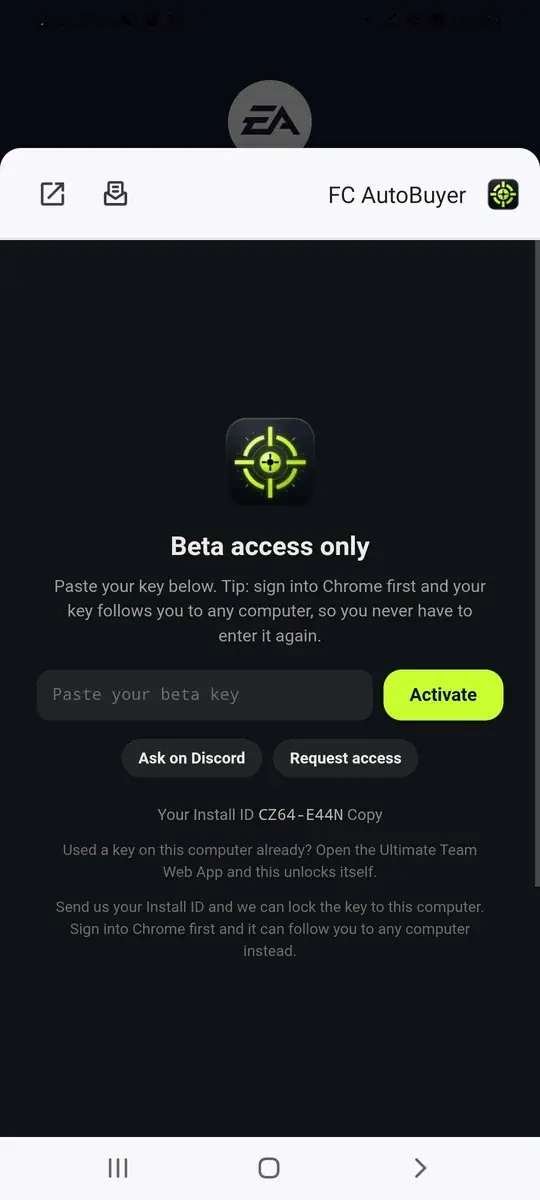
This is the easy one. Open the browser's menu, find Extensions, choose the Chrome Web Store, search for FC AutoBuyer and add it. The browser handles the rest, and updates arrive on their own.
From an unpacked build
If your browser can load an unpacked extension, the steps mirror the desktop ones:
- Download the zip from the Discord and unzip it with your phone's file manager. Keep the folder somewhere permanent, because the browser reads from it every time it starts.
- In the browser, open Extensions and turn on developer mode.
- Choose the load option and point it at the folder that contains
manifest.json. - Pin FC AutoBuyer so you can reach the popup without digging through menus.
If the browser refuses the folder, it is almost always because you picked the parent folder rather than the one with manifest.json directly inside it.
Turn on Desktop site first
This is the step people miss, and it makes everything else look broken. The Ultimate Team Web App checks what kind of browser is asking. On a phone user agent it either refuses or hands you a cut-down page with no transfer market worth the name.
Before you open the Web App, go into the browser menu and tick Desktop site. Then load the Web App and sign in. If you had it open already, turn the setting on and reload the tab, because the check runs when the page loads.
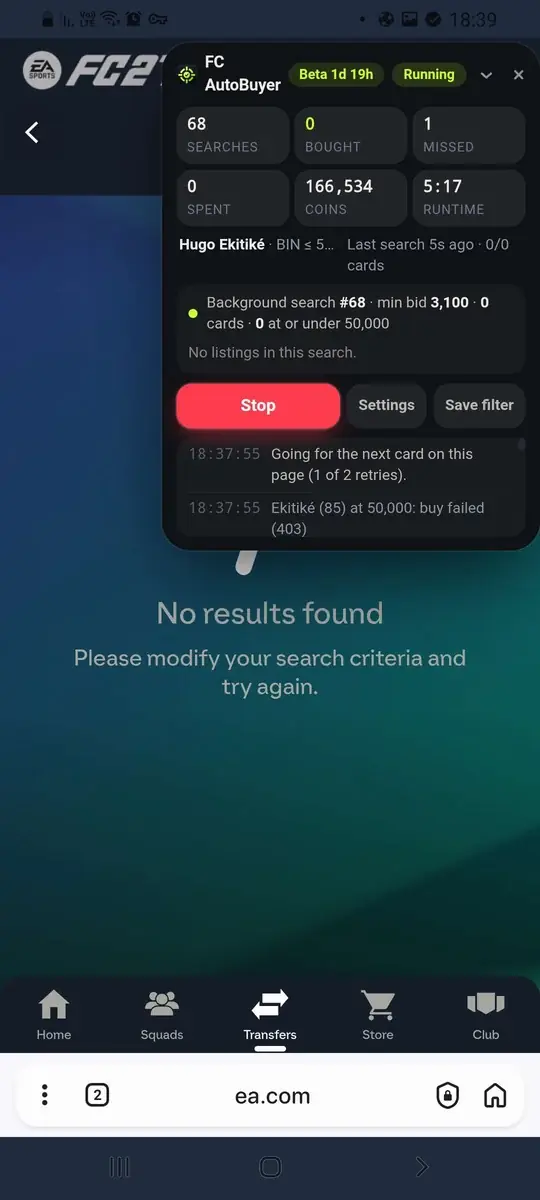
Once the Web App is in desktop mode, everything works the way it does on a computer: set a transfer market filter with a Max Buy Now, open the FC AutoBuyer popup, and press Start.
Settings worth changing on a phone
The extension does not behave differently on Android, but a few settings are worth a second look.
- Keep the panel hidden. The floating panel is useful on a big screen and in the way on a small one. The popup shows the same numbers.
- Set your safety limits before you start, not after. Editing a per-card limit with a thumb, mid-run, is exactly how a wrong number gets typed.
- Leave the search speed where it is. A phone on mobile data has a slower round trip to EA than a desktop on wifi. Pushing the speed up does not fix that, it just means more searches come back late.
- Turn on Discord alerts. If the phone is in your pocket, a notification is how you find out it bought something.
What it is actually like
Worth being straight about this. Sniping on a phone is slower than sniping on a laptop, and it is not the extension's fault. The Web App is a heavier page on a phone, mobile data adds latency to every search, and Android will happily throttle a background tab to save battery, which is the one thing a running bot cannot afford.
Where it earns its place is continuity. Setting a run up on a computer and then keeping an eye on it from a phone while you are out is genuinely useful. Starting from scratch on a phone, picking a filter, typing prices and checking the review screen, is a worse version of something that takes thirty seconds on a keyboard.
So: set it up on a computer if you have one to hand. Use the phone for the hours you would otherwise not be running at all.